

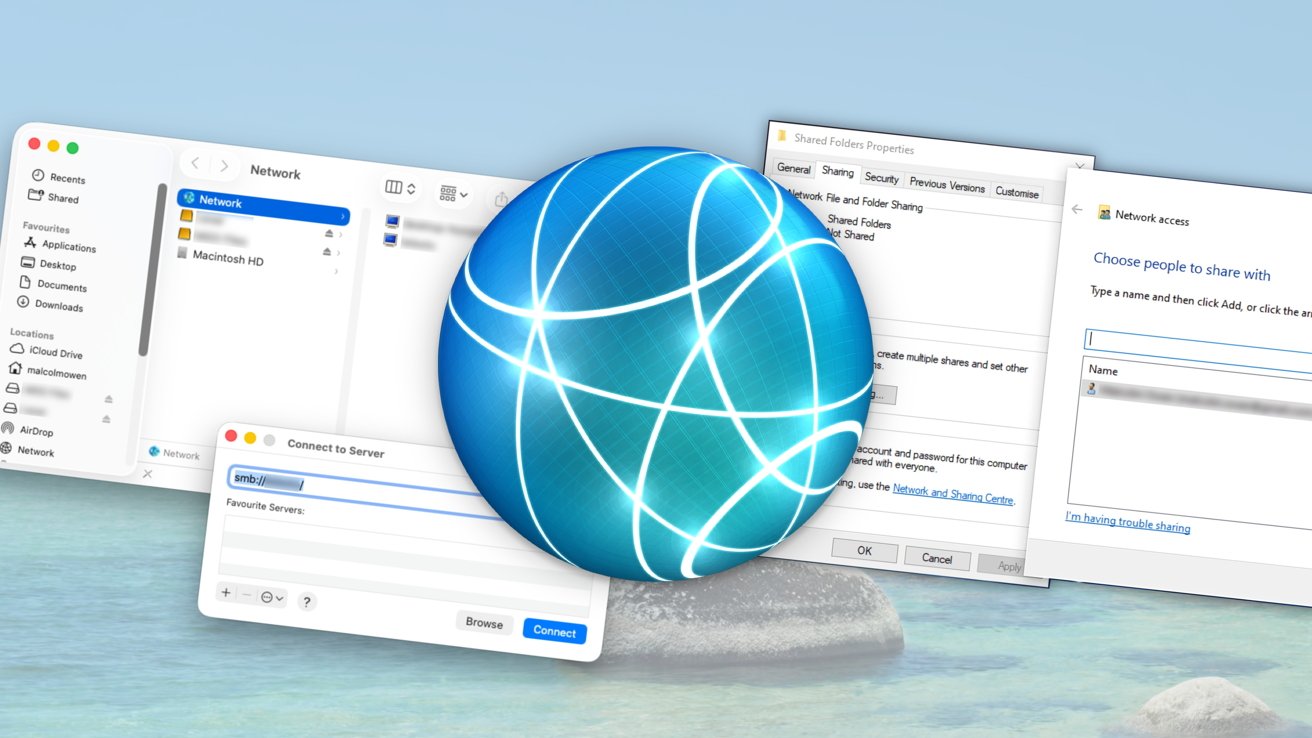
Sometimes you need to transfer a large document from a Mac to a Windows PC over a network. Here’s how to set up file sharing between macOS Tahoe and Windows.
Apple’s ecosystem makes managing and transferring files between devices like the iPhone and Mac almost seamless, allowing easy syncing and access across Apple hardware.
However, sharing files between a Mac and a Windows PC is more complicated. Without Apple’s integrated ecosystem, the two systems must be manually configured to communicate and exchange data.
While many users may not regularly use multiple computers, power users are more likely to encounter this setup. Even in environments with multiple Macs, it’s common for at least one machine to be running Windows on the same network.
Setting up Mac–Windows file sharing opens up a range of useful options. For example, it can help Mac users avoid buying a dedicated NAS or other network storage device by instead using free space on a Windows PC’s internal drives.
It can also extend the life of older machines by turning them into basic file servers. An older Intel-based Mac, for instance, can continue to serve files on a home or office network, just like a retired Windows PC.
This capability is becoming even more relevant as Apple gradually phases out support for AFP (Apple Filing Protocol). With AFP being deprecated in macOS Sequoia 15.5, features such as AirPort Time Machine backups are also expected to disappear. As a result, many NAS providers like Synology are shifting away from AFP and focusing entirely on SMB (Server Message Block) for network file sharing. Understanding SMB is therefore increasingly important for connecting macOS and Windows systems.
In most setups, file sharing typically involves two steps: first configuring shared folders on one device, and then connecting to them from the other.
This guide covers both directions—using either a Mac or a Windows PC as the file host—and explains how to access shared folders across both platforms.
Windows sharing to Mac
In most cases, users are more likely to share folders from a Windows PC and access them from a Mac.
One reason is flexibility: desktop PCs can easily be upgraded with additional internal storage simply by adding more drives. In contrast, Macs generally do not allow internal upgrades after purchase, pushing users toward external storage or higher-cost configurations at the time of buying.
Because of Apple’s premium pricing on storage upgrades, many users prefer using a Windows machine as a file server instead.
Setting up Windows file sharing
First, make sure Network Discovery is enabled on the Windows PC. To do this, click Start, then Settings, and go to Network & Internet.
Next, open Advanced Network Settings, then Advanced Sharing Settings. Under Private Networks, turn on the toggles for Network Discovery and File and Printer Sharing.
Reminder: These settings apply only to the Private network profile. Avoid enabling them on Guest or Public networks for security reasons.
You can now close the settings windows.
Next, open File Explorer and go to the folder you want to share. If you need to create a new one, right-click inside the desired location, choose New, then Folder, and name it accordingly.
Once you’ve selected the folder, right-click it and open Properties. Go to the Sharing tab, then under Network File and Folder Sharing, click Share.
If prompted, choose the Windows user accounts you want to grant access to, then click Share followed by Done.
You can use the Advanced Sharing options to adjust more detailed folder permissions, such as setting access to read-only for specific users. However, if the folder is only being shared for personal use, there’s usually no need to modify these advanced settings.
After setting up folder sharing, the next step is to access those folders from the other computer over the network.
Accessing shared Windows folders in macOS Tahoe
To connect to shared folders on a Windows PC, you’ll need a few key details: the computer’s IP address or name, and its workgroup. You can find this information in the Network & Internet section of the Windows Settings.
You’ll also need the correct Windows login credentials used on that PC, including the account password (not the PIN).
On your Mac, open Finder, then from the menu bar select Go, and click Connect to Server.
After setting up folder sharing, the next step is to access those folders from the other computer over the network.
Accessing shared Windows folders in macOS Tahoe
To connect to shared folders on a Windows PC, you’ll need a few key details: the computer’s IP address or name, and its workgroup. You can find this information in the Network & Internet section of the Windows Settings.
You’ll also need the correct Windows login credentials used on that PC, including the account password (not the PIN).
On your Mac, open Finder, then from the menu bar select Go, and click Connect to Server.
Before closing the File Sharing window, take note of the SMB address shown under the File Sharing toggle. This is the network address used to access the Mac from other devices.
Next, return to System Settings and open Network. Select the active connection you’ll use for file sharing, then click Details.
In the new window, choose WINS, and enter the Workgroup name used by the Windows PC. In most cases, this will be WORKGROUP or MSHOME, although it may vary depending on how the network is configured.
Click OK to apply the changes.
Return to System Settings and open the Sharing section again, then click the circled “i” next to File Sharing.
Under Shared Folders, click the + (plus) button, browse to the folder you want to share, and select Add.
Once the folder appears in the list, you can manage access permissions in the Users section by choosing which users or groups can read or write to it.
Accessing shared macOS folders in Windows
On the Windows PC, open File Explorer and go to Network. The Mac should appear in the list of available devices. If it does, click on it and enter your Mac username and password to gain access to the shared folders.
If the Mac does not appear in the Network list, click the address bar in File Explorer, then type \\ followed by the Mac’s name or IP address, and press Enter. Make sure to use backslashes, not forward slashes, for the connection to work properly.
When prompted with Enter Network Credentials, enter your Mac username and password, then confirm to access the shared folders.
About the Author